
Image banner
The Image Banner section allows merchants to create visually engaging promotional banners using large images combined with flexible content blocks. This section is ideal for showcasing campaigns, featured collections, seasonal promotions, brand messaging, or marketing content throughout the storefront.
The section supports customizable content layouts using flexible blocks such as Heading, Text, and Buttons, allowing merchants to create clean and responsive banner designs for different marketing purposes.
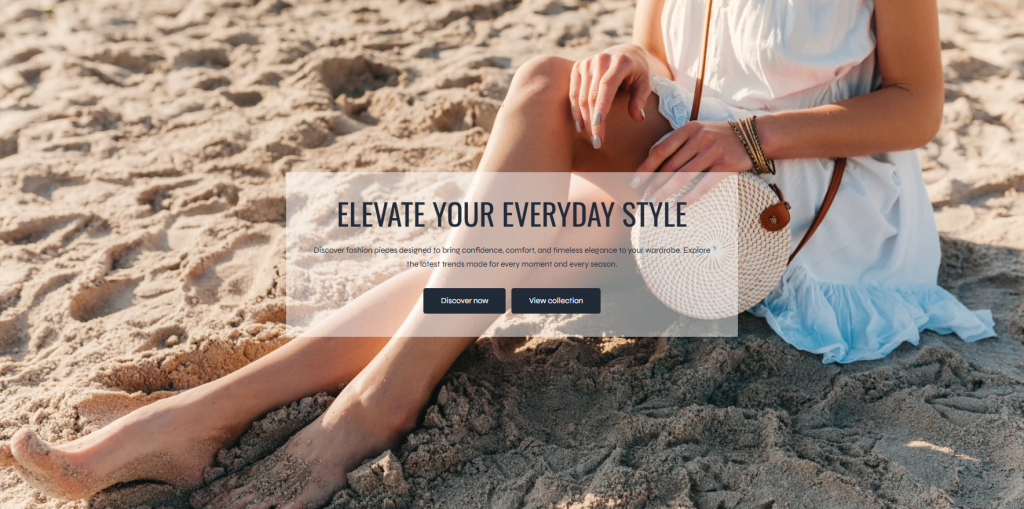
Settings
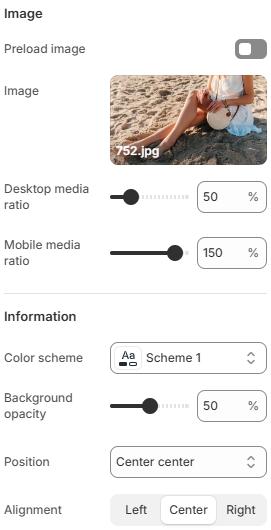
- Image
Preload image: Enables image preloading to improve loading performance and visual stability.
Desktop media ratio: Controls the image aspect ratio displayed on desktop devices.
Mobile media ratio: Defines the image aspect ratio displayed on mobile devices. - Information
Color scheme: Controls the color styling used for the banner content area.
Background opacity: Adjusts the opacity level of the content background overlay for improved readability.
Position: Controls the position of the content displayed inside the banner.
Alignment: Defines the text and content alignment inside the banner information area.
Block: Heading
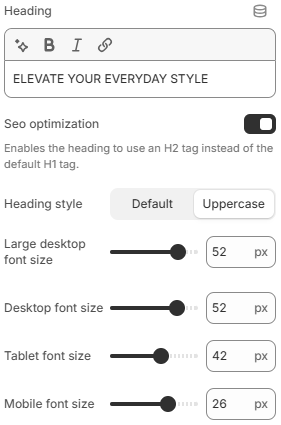
- Heading: Adds the main text content displayed as the heading.
- SEO optimization: By default, the heading uses an H1 tag. When enabled, the heading will use an H2 tag for improved page structure and SEO flexibility.
- Heading style: Controls the visual style of the heading text. Available options include Default and Uppercase.
- Large desktop font size: Controls the heading font size on large desktop screens.
- Desktop font size: Defines the heading font size for desktop devices.
- Tablet font size: Adjusts the heading font size displayed on tablet devices.
- Mobile font size: Controls the heading font size on mobile devices for better responsiveness and readability.
Block: Text
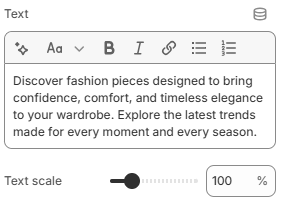
- Text: Allows you to enter and display custom text content inside the block.
- Text scale: Controls the overall text size to increase or decrease visual emphasis.
Block: Buttons
The Buttons block allows merchants to add call-to-action buttons inside the Image banner section. This block supports two buttons with identical settings, making it easy to guide customers toward collections, products, promotions, or other important pages.
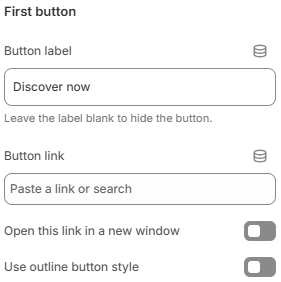
- Button label: Defines the text displayed on the button. Leave empty to hide the button.
- Button link: Sets the destination URL for the button.
- Open this link in a new window: Opens the button link in a new browser tab or window when enabled.
- Use outline button style: Applies an outline-style button appearance instead of a solid button style.
Block: Spacing
The Spacing block allows merchants to add adjustable spacing between content blocks inside the Image banner section. This block is useful for improving layout structure, creating better visual separation, and maintaining clean content organization across different screen sizes.
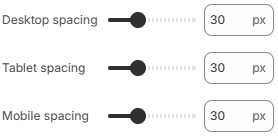
- Desktop spacing: Controls the spacing size displayed on desktop devices.
- Tablet spacing: Adjusts the spacing size for tablet layouts.
- Mobile spacing: Defines the spacing size displayed on mobile devices.
Using high-quality banner imagery, concise messaging, and balanced content positioning can help create a stronger visual impact while improving customer engagement with promotional content across the storefront.