How to Improve LCP in Shopify Stores: Detailed Technical Solutions
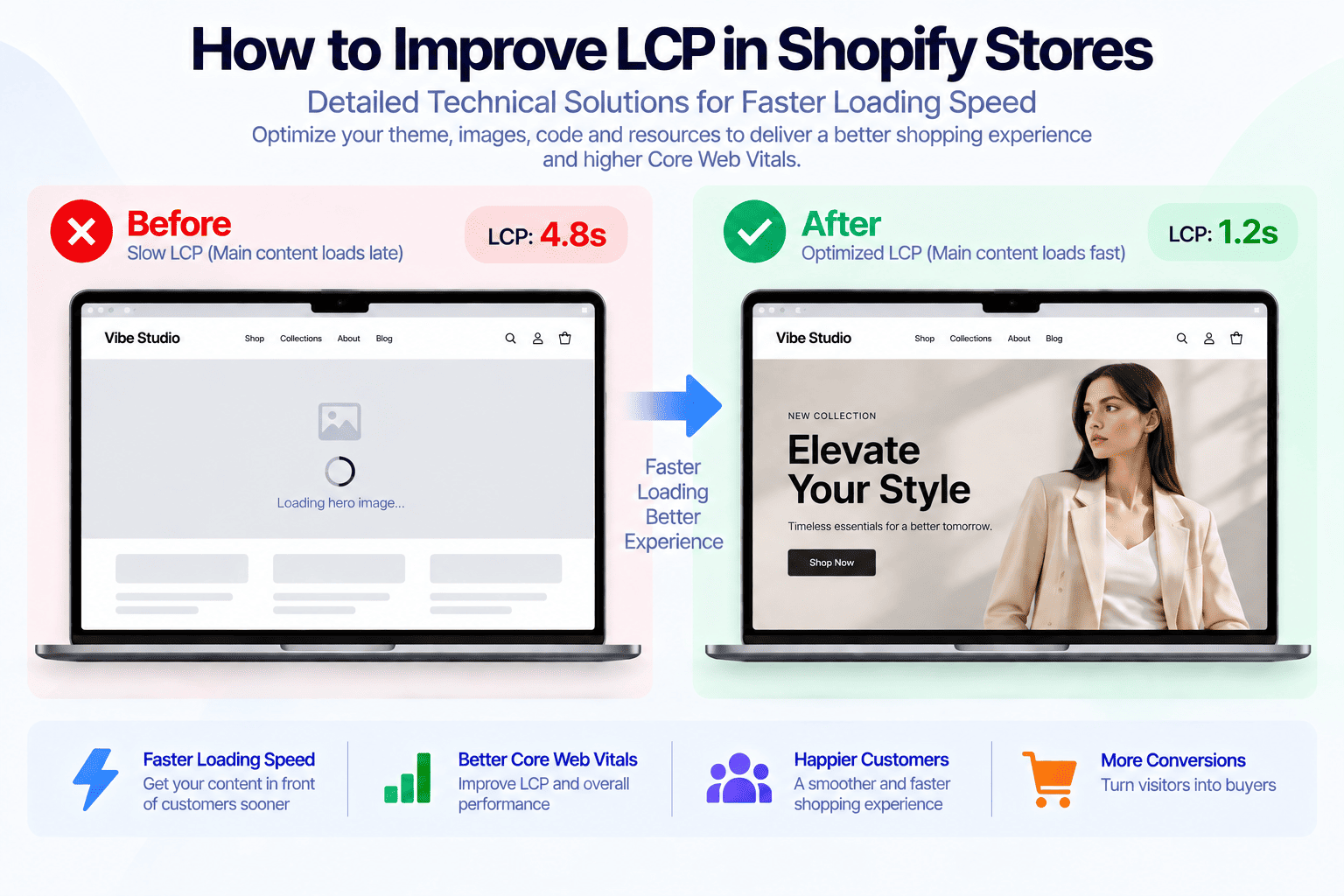
Shopify LCP optimization focuses on making the most important content on a page appear quickly and reliably. For Shopify stores, that usually means improving the delivery and rendering of the hero image, product image, banner, heading, or other large element that becomes the Largest Contentful Paint element.
A fast LCP matters because customers do not experience a Shopify store as a collection of technical metrics. They experience whether the page appears ready to use. If the main product image or hero section takes several seconds to appear, the store can feel slow even when other parts of the page are already loading.
This guide covers practical Shopify LCP optimization techniques that can be implemented at the theme and code level, including image delivery, resource prioritization, JavaScript, CSS, fonts, hero sections, videos, Shopify apps, and theme architecture.
Table of contents
- What Is LCP in Shopify?
- What Is a Good LCP Score?
- Why Shopify LCP Optimization Matters
- What Usually Causes Poor LCP in Shopify Stores?
- Optimize the Shopify LCP Element
- Optimize Hero Images for Better LCP
- Use the Correct Image Dimensions
- Use Responsive Images
- Use fetchpriority=”high” Correctly
- Preload Critical Images Carefully
- Avoid Lazy Loading the LCP Image
- Reduce Render-Blocking CSS
- Optimize Shopify Web Fonts
- Reduce JavaScript Before LCP
- Optimize Shopify Sliders and Hero Sections
- Be Careful With Hero Videos
- Reduce Third-Party Scripts
- Optimize Shopify App Embeds
- Improve Liquid Theme Architecture
- Avoid JavaScript-Generated LCP Content
- Avoid Background Images for Critical LCP Content
- Reduce Unnecessary DOM Complexity
- Use CSS Instead of JavaScript for Simple Visual Effects
- Optimize Product Page LCP
- Optimize Mobile LCP Separately
- How to Find the LCP Element
- A Practical Shopify LCP Optimization Workflow
- LCP vs INP vs CLS
- Can a Premium Shopify Theme Have Poor LCP?
- When Custom Shopify Development Makes Sense
- Shopify LCP Optimization Should Start With the Biggest Problems
- Final Thoughts
What Is LCP in Shopify?
Largest Contentful Paint, or LCP, is a Core Web Vital that measures how long it takes for the largest visible content element in the viewport to render.
On a Shopify store, the LCP element is commonly one of the following:
- A large hero image
- A product image
- A collection banner
- A promotional banner
- A large heading or text block
- A video poster or visual element
- A featured image
LCP is measured from the moment the page begins loading until the browser renders the largest relevant content element visible in the viewport.
A useful way to think about it is:
HTML → resource discovery → resource download → rendering → LCP
Every stage can introduce delay.
A store may have a relatively small image file but still experience poor LCP if the browser discovers that image too late. Conversely, an image can be discovered early but still produce a slow LCP because it is unnecessarily large or blocked by CSS and JavaScript.
For this reason, Shopify LCP optimization is not simply an image-compression exercise. It requires looking at the complete loading path of the LCP element.
What Is a Good LCP Score?
Google generally considers an LCP of 2.5 seconds or less to be good.
The commonly used thresholds are:
- Good: 2.5 seconds or less
- Needs Improvement: more than 2.5 seconds and up to 4 seconds
- Poor: more than 4 seconds
LCP is evaluated at the 75th percentile of page visits, so optimizing a single test run is not enough.
A Lighthouse test may show a very good LCP while real users experience something slower because of differences in devices, network conditions, geographic locations, or browser environments.
That is why a strong Shopify performance strategy should combine lab testing with real-user data.
Why Shopify LCP Optimization Matters
The first screen of a Shopify store has an outsized impact on how fast the site feels.
Consider a typical fashion store homepage:
- The header loads.
- The hero section appears.
- The hero image is downloaded.
- Text and buttons become visible.
- The customer starts interacting with the page.
If the hero image is the LCP element and it appears late, the customer may spend the first few seconds looking at an incomplete page.
This can happen even when the server responds quickly.
Common causes include:
- Large hero images
- Incorrect image dimensions
- Lazy loading above-the-fold images
- Late image discovery
- Render-blocking CSS
- Too much JavaScript
- Web font delays
- Sliders
- Hero videos
- App scripts
- Poor resource prioritization
- Unnecessary theme code
The goal of Shopify LCP optimization is therefore to make the browser discover, download, decode, and render the critical visual as early as possible.
What Usually Causes Poor LCP in Shopify Stores?
Shopify themes often contain many configurable sections and features. This flexibility is useful, but it can also create unnecessary work before the main content becomes visible.
Some common problems are particularly important.
Large Above-the-Fold Images
A hero image may be several thousand pixels wide even though the customer’s device only displays a fraction of that resolution.
Downloading a 3000px image for a mobile viewport creates unnecessary network and decoding work.
Lazy Loading the LCP Image
Lazy loading is useful for images below the fold, but the primary above-the-fold image should generally not be treated like a deferred resource.
If the browser waits for additional conditions before loading the LCP image, the LCP timestamp can move significantly later.
Late Resource Discovery
An image hidden behind JavaScript, CSS backgrounds, sliders, or dynamically generated markup may be discovered later than a normal <img> element.
This creates a resource discovery delay before the browser can even begin downloading the image.
Render-Blocking Resources
Large CSS files, synchronous JavaScript, and font loading can delay the point at which the browser can paint important content.
Third-Party Scripts
Apps and analytics tools may introduce additional JavaScript and network requests before the page is fully rendered.
Complex Hero Sections
Sliders, animations, video backgrounds, and multiple layered elements can turn a simple hero section into one of the most expensive components on the page.
Optimize the Shopify LCP Element
The first step in Shopify LCP optimization should always be identifying the actual LCP element.
Do not assume it is the hero image.
On a product page, the LCP might be the primary product image. On a collection page, it might be a collection banner. On a mobile layout, the LCP can even differ from the desktop version.
Once the element has been identified, inspect its complete loading path:
HTML discovery → request priority → download → decode → render
Ask:
- When is the resource discovered?
- Is it requested immediately?
- What is its file size?
- Is the correct image variant being served?
- Is it lazy loaded?
- Is JavaScript involved?
- Is CSS blocking its rendering?
- Is a font delaying the surrounding content?
- Is an app modifying the section?
This prevents optimizing the wrong component.
Optimize Hero Images for Better LCP
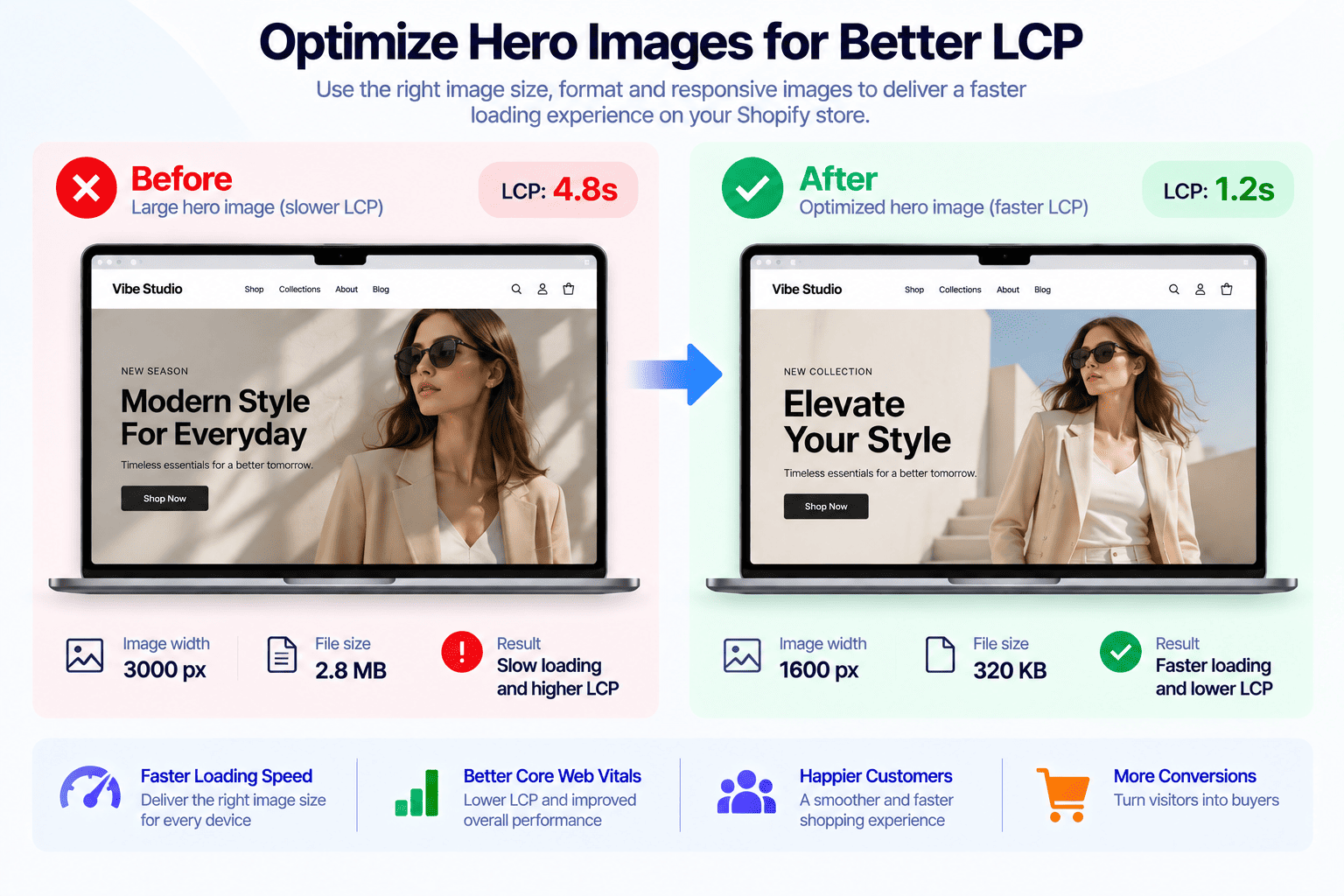
Hero images are one of the most common sources of poor LCP on Shopify stores.
A high-quality hero image does not need to be a massive image file.
The goal is to deliver the appropriate dimensions and format for the actual viewport.
For example, a desktop hero may need a wider image than mobile, while a mobile device may only require a significantly smaller resource.
Use Shopify’s responsive image capabilities rather than serving one oversized image to every device.
A simplified Liquid implementation might use:
{{ section.settings.image
  | image_url: width: 1600
  | image_tag:
    widths: '480, 768, 1200, 1600',
    sizes: '100vw',
    loading: 'eager',
    fetchpriority: 'high'
}}
The exact implementation should depend on the section and theme architecture, but the principle remains the same:
Serve the right image for the viewport instead of the largest image available.
Use the Correct Image Dimensions
Image dimensions affect both download efficiency and rendering.
A common mistake is using a very large source image when the rendered image is much smaller.
For example, if a mobile viewport displays a hero image at roughly 400 to 500 CSS pixels wide, downloading a huge desktop asset provides little visual benefit.
Use responsive widths that correspond to realistic rendered sizes.
The image should also have an appropriate aspect ratio so the browser understands the intended geometry early.
This is particularly important when the image is part of the first viewport.
Use Responsive Images
Responsive images allow the browser to choose a suitable image resource based on the device and layout.
Shopify themes can use srcset and sizes to provide multiple image candidates.
A simplified example:
<img
  src="hero-1200.jpg"
  srcset="
    hero-480.jpg 480w,
    hero-768.jpg 768w,
    hero-1200.jpg 1200w,
    hero-1600.jpg 1600w
  "
  sizes="100vw"
>
The browser can then select a suitable candidate rather than downloading the same large asset for every visitor.
This is particularly useful for responsive storefronts where the desktop and mobile layouts have very different image requirements.
Use fetchpriority=”high” Correctly
For a critical LCP image, fetchpriority="high" can help communicate that the resource deserves early network attention.
For example:
<img
  src="hero-image.webp"
  fetchpriority="high"
  loading="eager"
>
However, this attribute should not be added to every image.
If ten images are marked as high priority, the browser loses a clear signal about which resource actually matters.
A better strategy is to prioritize the resource that is genuinely critical to the first viewport.
For most pages, that means one primary LCP candidate rather than an entire gallery.
Preload Critical Images Carefully
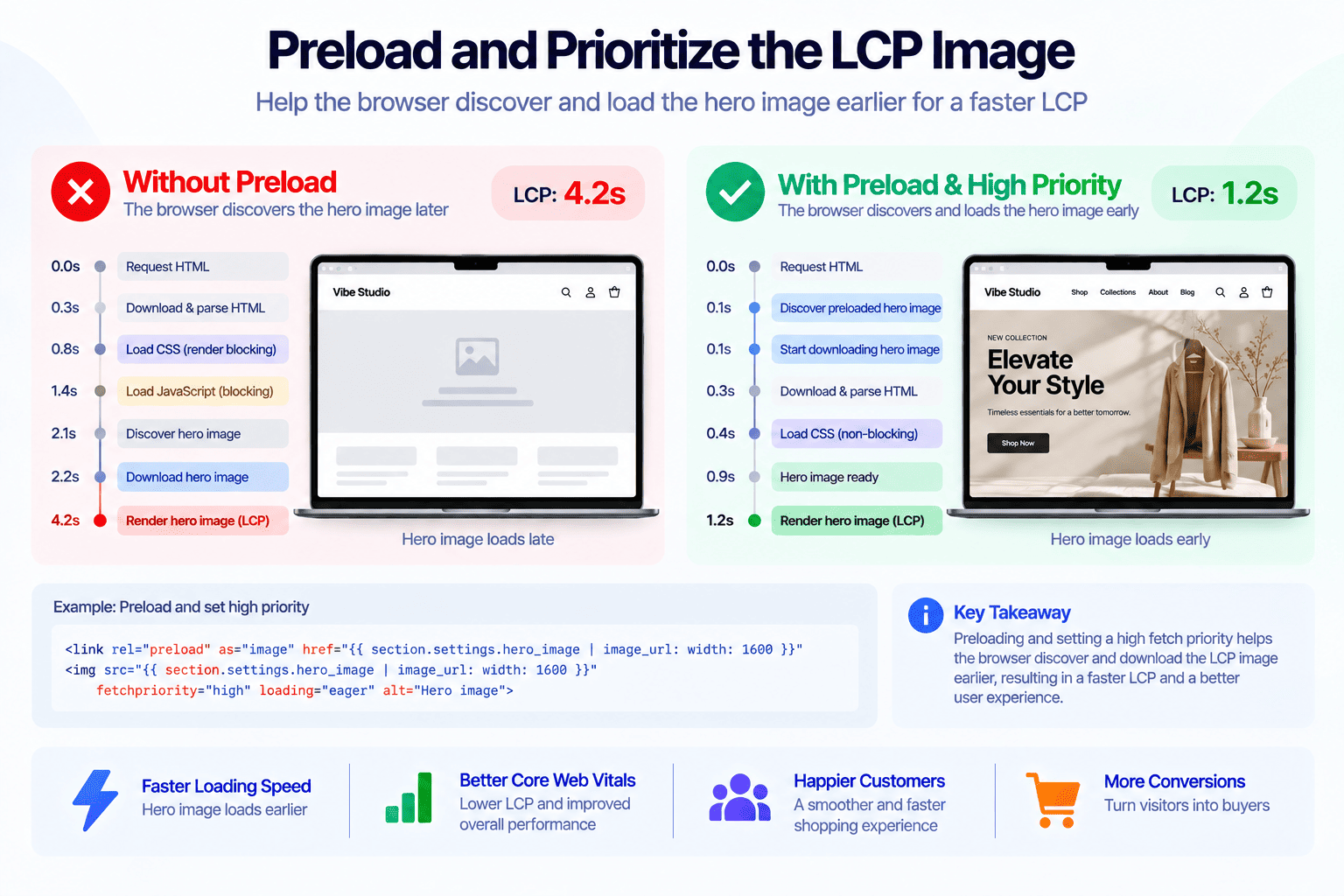
Preloading can help when the browser would otherwise discover the LCP resource too late.
For example:
<link
  rel="preload"
  as="image"
  href="hero-image.webp"
>
However, preload is a powerful hint and should be used selectively.
If the browser already discovers the image immediately through a normal <img> element, adding preload may provide little benefit.
Preloading the wrong resource can also compete with CSS, fonts, or other critical requests.
Before adding preload, ask whether the real problem is late discovery.
If the LCP image is already directly referenced in the initial HTML, improving its size and priority may be more valuable.
Avoid Lazy Loading the LCP Image
Lazy loading is one of the most useful techniques for images below the fold.
It is also one of the easiest ways to accidentally hurt LCP.
A typical product page may contain:
- Product gallery
- Related products
- Recommendations
- Reviews
- Blog content
- Recently viewed products
These images can often be lazy loaded.
The primary image visible in the first viewport is different.
For the LCP candidate, consider:
loading="eager"
fetchpriority="high"
while keeping lower-priority content deferred.
The objective is not to remove lazy loading from the entire theme. It is to use lazy loading according to the importance of each resource.
Reduce Render-Blocking CSS
CSS is necessary to render a Shopify storefront, but unnecessarily large stylesheets can delay first rendering.
Theme styles often contain rules for:
- Header
- Footer
- Product cards
- Cart
- Quick view
- Modals
- Sliders
- Forms
- Collection filters
- Product pages
- Account pages
- Blog pages
- Custom sections
Not all of that CSS is required to render the first viewport.
A stronger architecture separates critical rendering requirements from secondary styles where practical.
For example:
Critical
- Header
- Main typography
- Hero layout
- Above-the-fold product layout
- Primary buttons
Secondary
- Footer
- Below-the-fold sections
- Modals
- Quick view
- Secondary widgets
- Less frequently used components
Reducing unnecessary CSS work can help the browser reach the LCP paint sooner.
Optimize Shopify Web Fonts
Fonts can affect LCP indirectly by delaying text rendering or changing the visual appearance of the page.
A Shopify theme may load:
- Heading font
- Body font
- Navigation font
- Icon font
- Multiple font weights
Loading every possible font weight immediately is rarely necessary.
Start by identifying which fonts are actually required above the fold.
For example, if the hero uses one heading weight and one body weight, loading six additional weights during the initial page load creates unnecessary work.
Use appropriate font-display behavior and avoid loading fonts that are not needed for the initial viewport.
Font optimization should also be considered together with the fallback font. A poor fallback can create significant text reflow, while a compatible fallback can make the transition less visually disruptive.
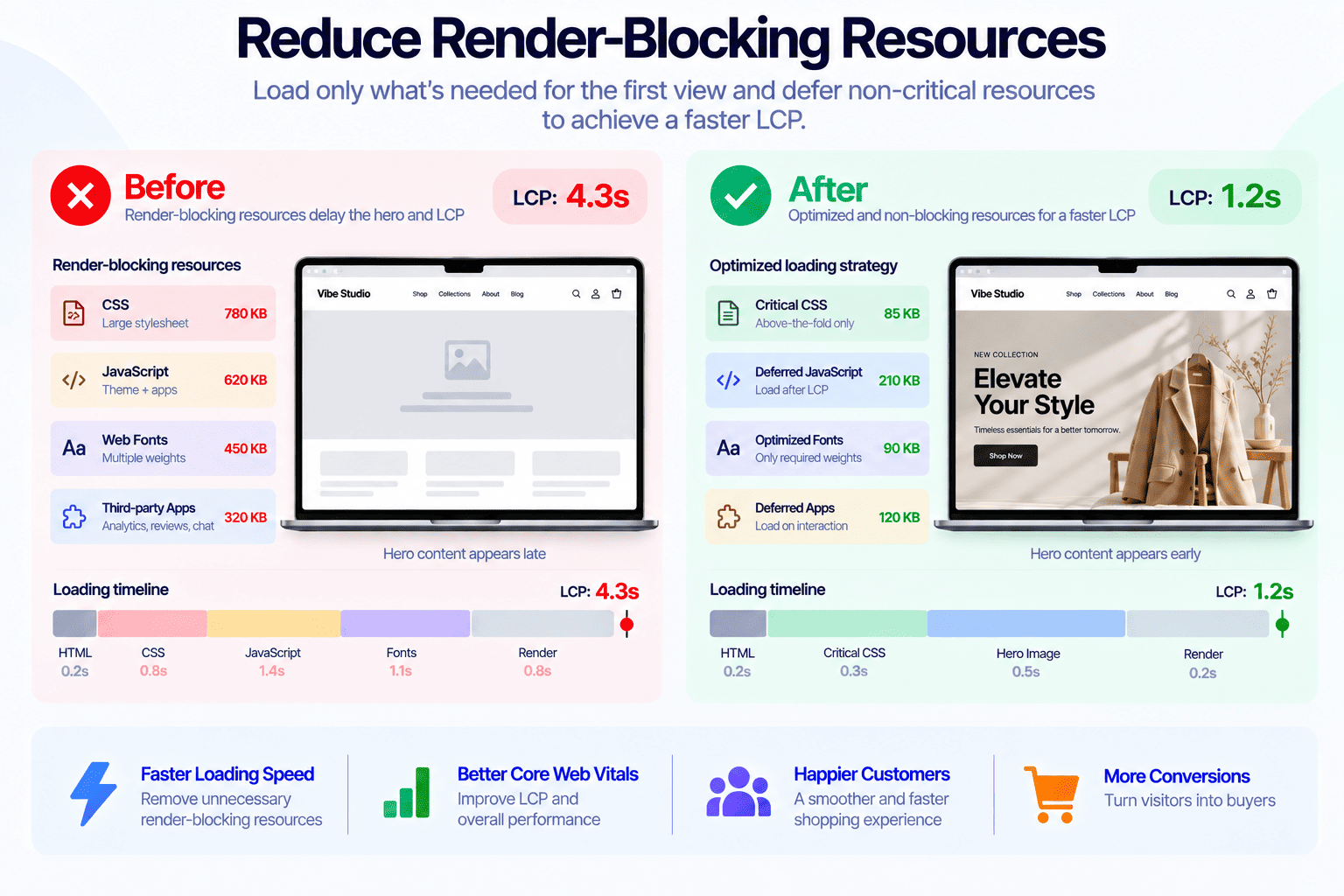
Reduce JavaScript Before LCP
JavaScript can affect LCP even when it does not directly render the LCP element.
Heavy JavaScript can:
- Block the main thread
- Delay DOM processing
- Delay event setup
- Compete for network resources
- Trigger unnecessary rendering
- Delay hydration or initialization
- Modify the hero section after page load
Common Shopify examples include:
- Sliders
- Quick view
- Product variant logic
- Search
- Cart drawer
- Popup systems
- Analytics
- Review widgets
- Product recommendation systems
The key question is:
Does this JavaScript need to execute before the customer sees the primary content?
If the answer is no, consider delaying or initializing it after the critical rendering path.
This approach complements Shopify INP optimization because reducing unnecessary main-thread work can improve both initial rendering and later interaction responsiveness.
Optimize Shopify Sliders and Hero Sections
Sliders are particularly important because they frequently appear above the fold.
A typical slider can contain:
- Multiple large images
- Navigation controls
- Animation logic
- Autoplay timers
- Pagination
- Touch handlers
- Transition calculations
- Multiple DOM structures
The first slide is often the LCP candidate.
There is little value in treating the second, third, or fourth slides as equally important during initial rendering.
A better approach is to prioritize the first visible slide and defer secondary slides where possible.
For example:
First slide
- Load immediately
- Use the correct responsive image
- Prioritize the LCP resource
Secondary slides
- Load lazily where appropriate
- Initialize interaction logic later
- Avoid competing with the first slide
This reduces initial network and JavaScript competition.
Be Careful With Hero Videos
Hero videos can create an impressive visual experience, but they can also create significant performance costs.
A video may involve:
- Poster image
- Video request
- Multiple video resources
- Decoding
- Playback initialization
- JavaScript controls
If the poster image is the element that appears first, optimizing that image becomes especially important.
Do not assume that replacing an image with video automatically improves the experience.
For many storefronts, a carefully optimized static hero image can provide a faster first visual while the video loads later.
If a hero video is necessary, consider using a lightweight poster image and deferring nonessential video work until the critical content is visible.
Reduce Third-Party Scripts
Third-party scripts are another important part of Shopify LCP optimization.
Common examples include:
- Analytics
- Advertising pixels
- Review platforms
- Chat widgets
- Personalization tools
- Heatmaps
- Social widgets
- A/B testing platforms
Each script can introduce additional requests and main-thread work.
More importantly, some scripts can execute before the browser finishes rendering the primary content.
Review third-party scripts based on their actual business value.
For every script, ask:
- Is it required for the first viewport?
- Does it need to execute immediately?
- Can it load after the page becomes interactive?
- Can it be triggered by user interaction?
- Is another tool already providing the same functionality?
Removing one unnecessary script can sometimes be more effective than optimizing several small pieces of theme code.
Optimize Shopify App Embeds
Shopify app embeds make it easy to add functionality, but they can also introduce resources that are present across many pages.
An app may load:
- JavaScript
- CSS
- Fonts
- Images
- API requests
- External resources
Even if the app’s visible widget is below the fold, its resources may still be initialized during the initial page load.
Audit app embeds and identify which ones are actually required on each page.
A review widget does not necessarily need to initialize before the main product image appears.
A chat widget does not necessarily need to block the first render.
A popup does not need to compete with the hero section.
Where the app allows delayed initialization, use it.
Improve Liquid Theme Architecture
Liquid itself is not automatically a performance problem. The issue is how the theme uses Liquid to construct the page.
A theme with many conditional features can produce a large amount of markup and load resources that are not necessary for every page.
For example:
theme
├── Header
├── Announcement bar
├── Hero
├── Slider
├── Product cards
├── Quick view
├── Quick add
├── Cart drawer
├── Popup
├── Newsletter
├── Reviews
├── Recommendations
└── Footer
Not every page needs every feature.
A good theme architecture should distinguish between:
Critical functionality
Required to display and use the primary page content.
Secondary functionality
Useful but not necessary for the first viewport.
Optional functionality
Loaded only when the customer interacts with it.
This architecture reduces the amount of work that competes with the LCP element.
For broader theme architecture principles, see our guide to Shopify theme features every online store needs.
Avoid JavaScript-Generated LCP Content
One of the less obvious LCP problems occurs when the primary visual is generated or inserted by JavaScript.
For example, instead of:
<img src="product-image.webp">
a theme might initially render an empty container and then wait for JavaScript to insert the image.
This creates an unnecessary dependency:
HTML → JavaScript → DOM update → image discovery → image download → render
A directly referenced image can reduce that chain:
HTML → image discovery → download → render
For critical content, prefer server-rendered HTML whenever practical.
This is particularly valuable for:
- Hero images
- Product images
- Collection banners
- Primary headings
- Above-the-fold content
Avoid Background Images for Critical LCP Content
CSS background images can be useful for decorative elements, but they can complicate resource discovery for critical visual content.
For an important product or hero image, a semantic <img> element is often easier for the browser to prioritize and for developers to optimize.
Background images are more appropriate for decorative visuals where SEO, accessibility, and early resource discovery are less important.
If the visual is the primary content users need to see, consider whether it should be represented as an image element rather than a CSS background.
Reduce Unnecessary DOM Complexity
The DOM itself does not directly define LCP, but a complicated page can increase the amount of work required by the browser.
A hero section can easily accumulate unnecessary wrappers:
<div>
  <div>
    <div>
      <div>
        <div class="hero">
          ...
        </div>
      </div>
    </div>
  </div>
</div>
Simplifying markup where practical can make components easier to style, maintain, and render.
This becomes especially important when a theme contains many nested sections and reusable components.
Keep the first viewport focused on the content customers actually need.
Use CSS Instead of JavaScript for Simple Visual Effects
Simple visual effects do not always require JavaScript.
For example, hover states, opacity changes, transforms, and basic transitions can generally be handled by CSS.
Using JavaScript for simple presentation logic can add unnecessary execution during page load.
Instead of:
element.addEventListener('mouseenter', () => {
  element.classList.add('active');
});
many basic interactions can simply use:
.element:hover {
  opacity: 0.8;
}
This is not about removing JavaScript completely. It is about keeping the critical rendering path free from work that does not need to be there.
Optimize Product Page LCP
Product pages deserve special attention because their first viewport often contains several expensive elements:
- Product image gallery
- Product title
- Price
- Variant selectors
- Reviews
- Promotional messages
- Product information
- Add-to-cart functionality
The primary product image is frequently the LCP candidate.
Start by optimizing that image, then ensure the surrounding product information can render without waiting for unnecessary JavaScript.
Variant selection logic, recommendations, reviews, and secondary widgets should not unnecessarily delay the first product visual.
This also connects to the broader principles discussed in our premium Shopify themes guide, where performance should be considered part of theme quality rather than an optional add-on.
Optimize Mobile LCP Separately
Desktop and mobile should not be treated as identical performance environments.
Mobile devices often have:
- Smaller screens
- Slower CPUs
- Different network conditions
- Different image requirements
- Different layouts
- Different LCP elements
A desktop hero image may be 1600px or wider, while a mobile layout may only require a much smaller resource.
Test both separately.
A theme can achieve an excellent desktop LCP while still having a poor mobile score because of:
- Oversized mobile images
- Heavy mobile JavaScript
- Desktop assets being reused on mobile
- Sliders
- Large font files
- App scripts
- Complex responsive layouts
Mobile should therefore be part of the initial optimization strategy, not an afterthought.
How to Find the LCP Element
Before changing code, identify the element responsible for LCP.
Browser performance tools can help reveal:
- LCP element
- Resource URL
- Request timing
- Render timing
- Network activity
- Main-thread activity
The important distinction is between resource load time and element render time.
For example, if the LCP image takes 800ms to download but appears at 2.8 seconds, the image itself may not be the only problem.
The browser could be waiting on:
- CSS
- Fonts
- JavaScript
- Layout calculations
- Main-thread work
This is why Shopify LCP optimization should follow the complete timeline instead of focusing only on image file size.
A Practical Shopify LCP Optimization Workflow
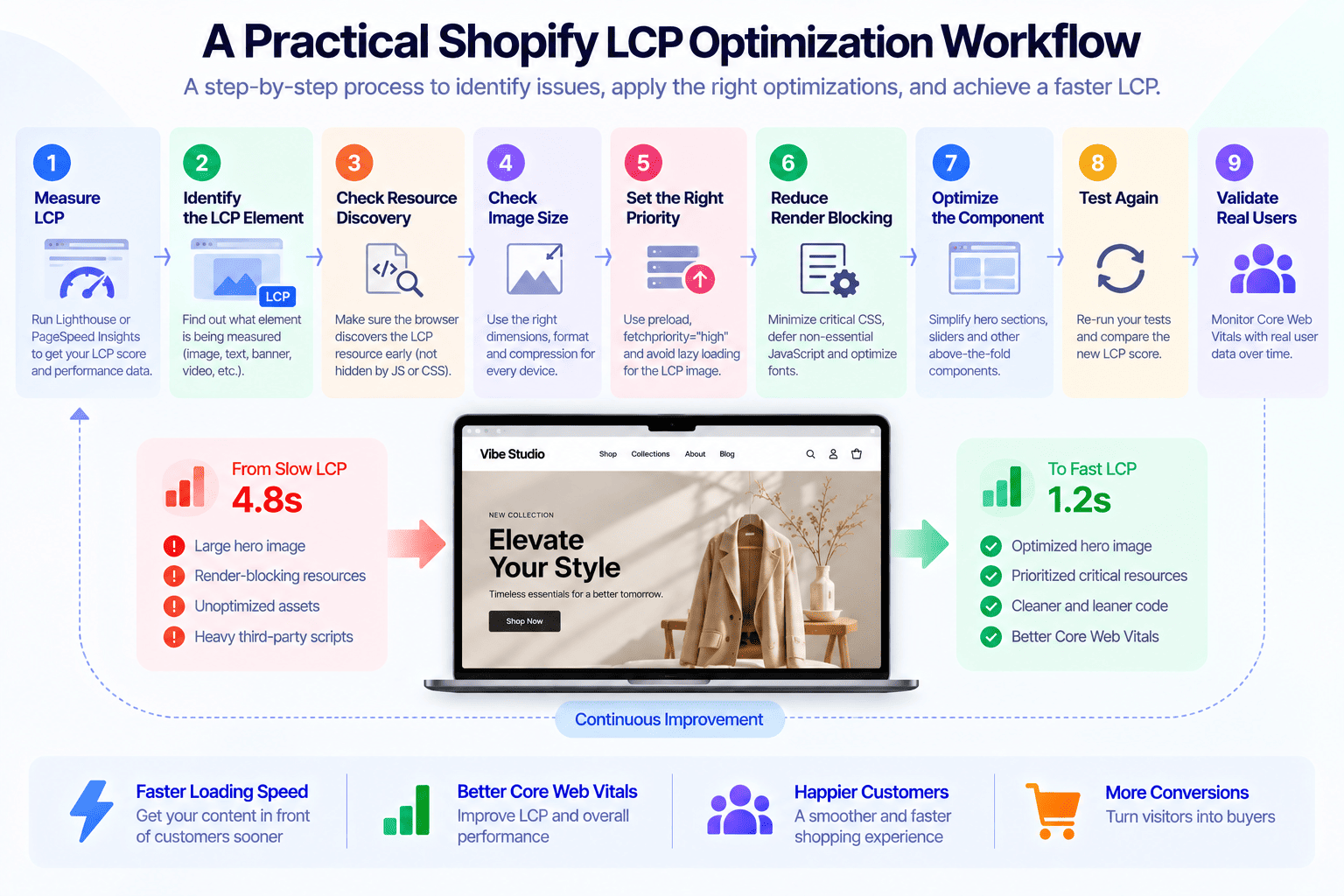
A structured Shopify LCP optimization workflow is more effective than changing code based on guesswork. Instead of optimizing random parts of the theme, start by identifying the elements that are actually slow and then work backward to find the cause.
Step 1: Measure LCP
Run the page through a performance testing tool and record:
- LCP
- LCP element
- Resource timing
- Network requests
- JavaScript activity
- CSS activity
Test multiple page types rather than only the homepage.
Step 2: Identify the LCP Element
Determine whether the LCP is:
- Image
- Video poster
- Text
- Banner
- Product media
- Other visible content
This determines the optimization strategy.
Step 3: Check Resource Discovery
Ask when the browser discovers the LCP resource.
If the browser discovers it late, investigate:
- JavaScript-generated markup
- CSS backgrounds
- Sliders
- Lazy loading
- App widgets
- Dynamic rendering
Step 4: Check Resource Size
For images, inspect:
- File dimensions
- File size
- Format
- Responsive variants
- Compression
Do not optimize based only on the image’s original upload dimensions.
Step 5: Check Request Priority
Determine whether the browser treats the LCP resource as an important request.
For critical images, evaluate whether:
loading="eager"
and:
fetchpriority="high"
are appropriate.
Step 6: Reduce Render Blocking
Inspect:
- CSS
- JavaScript
- Fonts
- Third-party resources
Remove or defer anything that does not need to execute before the primary content becomes visible.
Step 7: Optimize the Component
Improve the actual theme section responsible for LCP.
For a hero section, this may mean:
- Simplifying markup
- Optimizing images
- Reducing slider logic
- Deferring secondary slides
- Removing unnecessary animation
- Reducing JavaScript
For a product page, it may mean:
- Optimizing the main product image
- Simplifying gallery initialization
- Delaying recommendations
- Reducing variant JavaScript
Step 8: Test Again
After making changes, run another test.
Do not assume that a code change improved performance simply because the code looks cleaner.
Compare the actual results.
Step 9: Validate Real Users
Lab testing is useful for development, but real-user data provides the stronger indication of whether the optimization works across different devices and networks.
Monitor Core Web Vitals after deployment and look for improvements over time.
LCP vs INP vs CLS
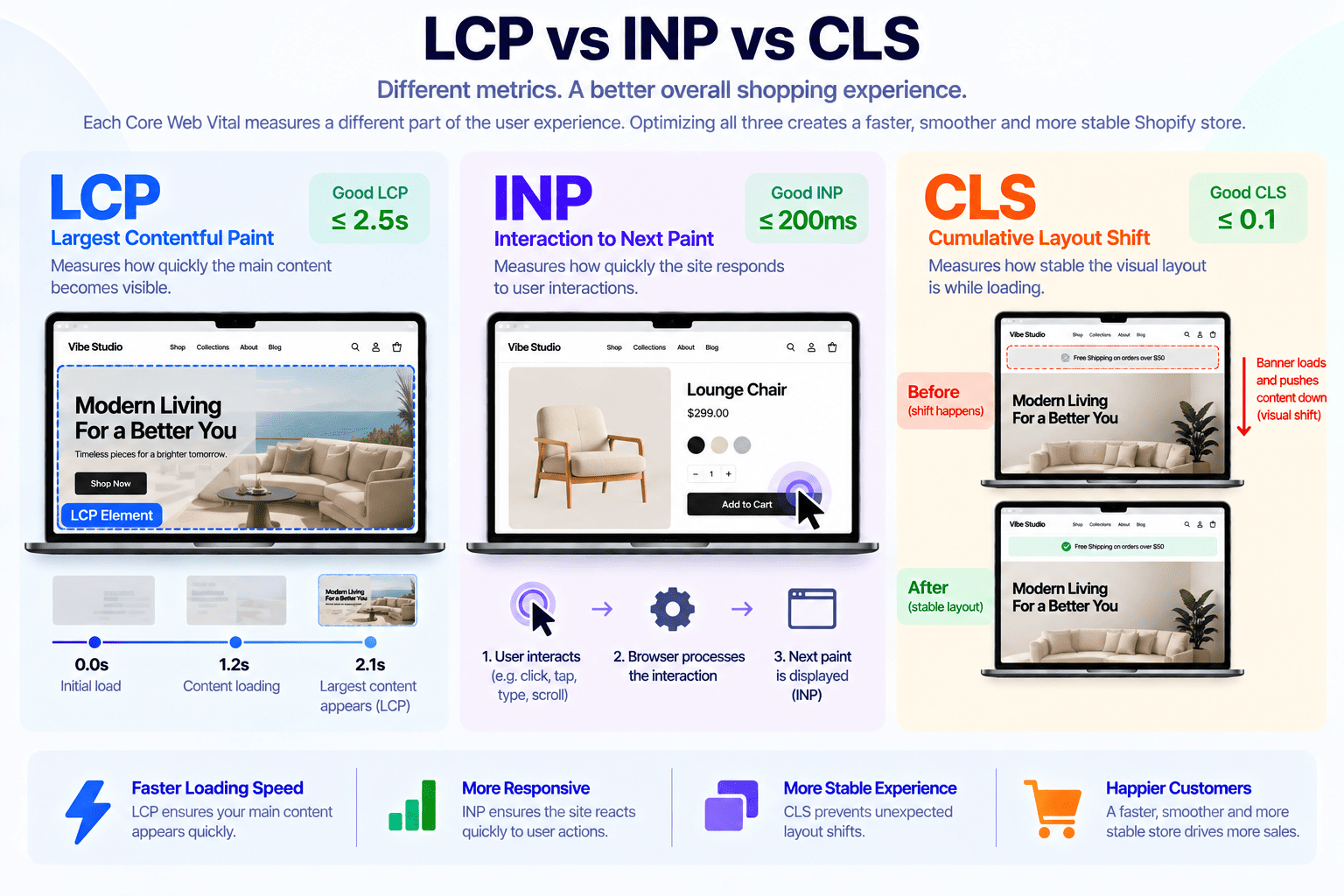
LCP, INP, and CLS measure different aspects of the customer experience.
LCP
Measures how quickly the main content appears.
Question:
“How quickly does the page look ready?”
INP
Measures interaction responsiveness.
Question:
“How quickly does the page respond when I interact with it?”
CLS
Measures unexpected visual movement.
Question:
“Does the page stay where it is supposed to be?”
A fast Shopify store needs all three.
You can have a page with:
- Good LCP but poor INP
- Good INP but poor CLS
- Good CLS but poor LCP
Optimizing one metric does not automatically fix the others.
For CLS-specific techniques, see our Shopify CLS optimization guide.
Can a Premium Shopify Theme Have Poor LCP?
Yes.
A premium theme can contain excellent design, flexible sections, and advanced functionality while still producing a poor LCP score.
Performance depends on implementation, configuration, content, apps, and how the theme loads resources.
For example, a premium theme may become slower when a merchant adds:
- Large hero images
- Multiple sliders
- Custom fonts
- Review apps
- Analytics tools
- Chat widgets
- Product recommendation systems
- Marketing scripts
The theme itself is only part of the performance equation.
This is why choosing a theme should involve more than comparing the visual design. Our guide on free vs premium Shopify themes covers other factors to consider when evaluating themes.
When Custom Shopify Development Makes Sense
Sometimes a performance problem cannot be solved effectively through theme settings alone.
Custom Shopify development can make sense when the store requires:
- Complex custom sections
- Advanced product interactions
- Custom merchandising
- Performance-focused theme architecture
- Custom app integrations
- Specialized loading behavior
- Removal of unnecessary dependencies
The objective should not be to rebuild everything simply because a performance score is low.
Instead, identify the bottleneck first.
If a hero image is 2MB, rebuilding the entire theme is unlikely to be the first solution.
If the theme architecture loads large amounts of unnecessary JavaScript across every page, however, deeper development work may provide a much larger improvement.
Our custom Shopify development service can be useful when the performance issue is tied to the underlying theme architecture rather than a single configuration.
Shopify LCP Optimization Should Start With the Biggest Problems
Not every optimization produces the same result.
A useful priority order is:
1. Identify the LCP element
Know exactly what is being measured.
2. Fix late resource discovery
Make sure the browser can find the critical resource quickly.
3. Optimize the LCP resource
Reduce unnecessary image dimensions and file size.
4. Prioritize critical resources
Use appropriate loading behavior and request priority.
5. Remove render-blocking work
Reduce unnecessary CSS, JavaScript, and font delays.
6. Audit apps and third-party scripts
Prevent secondary functionality from competing with primary content.
7. Simplify the theme architecture
Load functionality according to when it is actually needed.
This approach is more effective than trying to optimize every component equally.
A 1.5MB hero image that becomes the LCP element deserves more attention than a small footer icon that saves 5KB.
Final Thoughts
Improving LCP in Shopify stores requires more than compressing a few images. The strongest approach is to identify the actual LCP element, make it discoverable early, deliver the right resource for the viewport, reduce render-blocking work, and prevent secondary theme features and third-party scripts from competing with critical content.
For Shopify theme developers, LCP should be considered part of theme architecture from the beginning. Hero sections, product media, fonts, JavaScript, CSS, sliders, and app integrations all contribute to the loading path that determines when the customer sees the main content.
If your Shopify store has a poor LCP score or inconsistent Core Web Vitals, Vibe Studio can help identify the bottlenecks and optimize your theme at the code level.