Marquee text
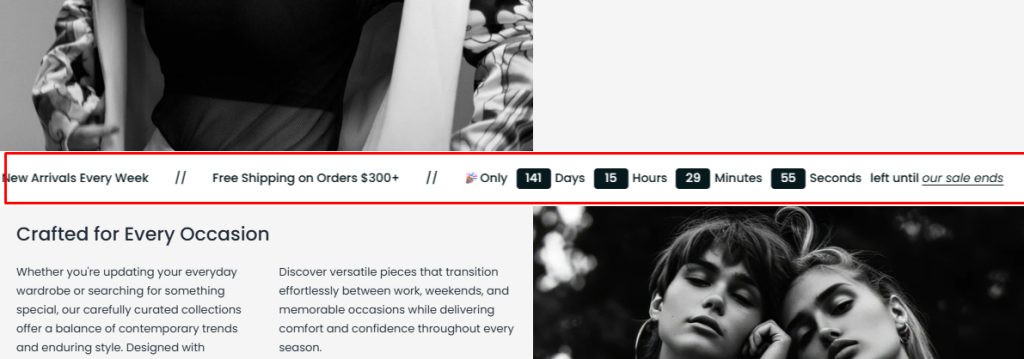
The Marquee Text section displays continuously scrolling text content across the storefront, helping merchants create eye-catching announcements, promotional messages, brand slogans, or navigation links in a more dynamic format. This section is ideal for increasing visibility of important content while adding movement and interactivity to the storefront design.
Each scrolling text item inside the marquee is created using a section block, allowing merchants to display multiple text entries with optional links.
Settings
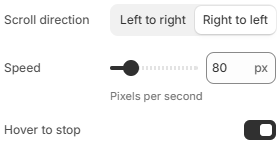
- Scroll direction: Controls the marquee scrolling direction. Available options include Left to Right and Right to Left.
- Speed: Controls the scrolling speed in pixels per second.
- Hover to stop: Pauses the marquee animation when customers hover over the section.
Block: Item
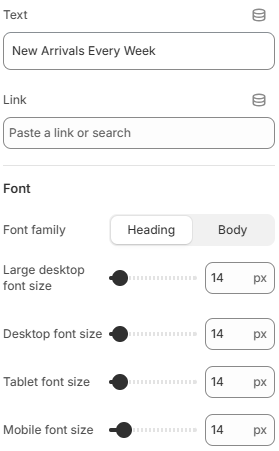
- Text: Enter the text content displayed in the marquee item.
- Link: Set the destination URL for the marquee item. Customers can click the text to navigate to the specified link.
- Font
- Font family: Choose the font family used for the marquee text, either Heading or Body.
- Large desktop font size: Set the text size on large desktop screens.
- Desktop font size: Set the text size on desktop screens.
- Tablet font size: Set the text size on tablet devices.
- Mobile font size: Set the text size on mobile devices.
Block: Countdown
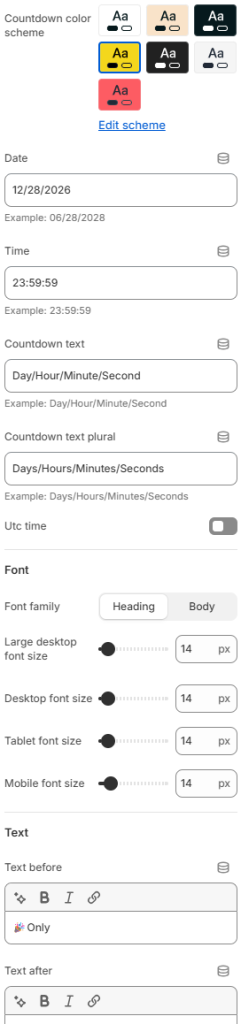
- Countdown color scheme: Select the color scheme used for the countdown timer.
- Date: Set the target date for the countdown.
- Time: Set the target time for the countdown.
- Countdown text: Define the labels displayed for each countdown unit in singular form, such as Day, Hour, Minute, and Second.
- Countdown text plural: Define the labels displayed for countdown units when the value is greater than one, such as Days, Hours, Minutes, and Seconds.
- UTC time: Enable or disable UTC time for the countdown. When enabled, the countdown uses the specified date and time in UTC.
Font
- Font family: Choose the font family used for the countdown text, either Heading or Body.
- Large desktop font size: Set the countdown text size on large desktop screens.
- Desktop font size: Set the countdown text size on desktop screens.
- Tablet font size: Set the countdown text size on tablet devices.
- Mobile font size: Set the countdown text size on mobile devices.
Text
- Text before: Add content displayed before the countdown timer.
- Text after: Add content displayed after the countdown timer.
Using concise text content, balanced scrolling speeds, and responsive typography can help create a cleaner and more engaging marquee experience across all devices. Linking marquee items to important collections, campaigns, or pages can also help improve customer interaction and storefront navigation.