Image comparison
The Image Comparison section allows you to showcase two images side by side, making it easy for customers to compare differences between products, features, or results. It is ideal for presenting before-and-after visuals, product transformations, or highlighting key improvements in a clear and engaging way.

Settings
The First image and Second image have the same configuration options, allowing you to customize the content and appearance of both sides consistently.
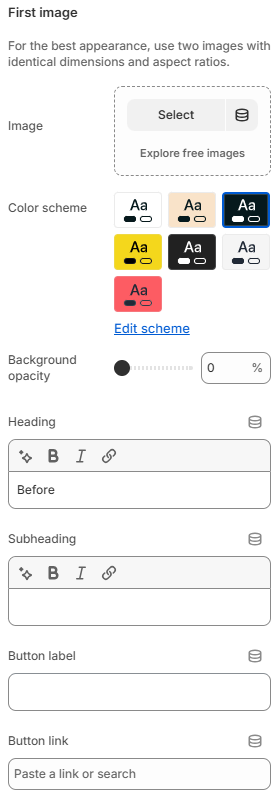
- Image: Selects the image displayed in the comparison area. For the best visual result, use two images with identical dimensions and aspect ratios.
- Color scheme: Controls the color scheme applied to the content associated with the image, including text, buttons, and other elements.
- Background opacity: Controls the opacity of the section background, allowing you to adjust how prominent the background color appears.
- Heading: Adds a heading displayed with the image, such as “Before” or “After”, to help customers understand what each image represents.
- Subheading: Adds supporting text below the heading to provide additional information or context for the image.
- Button label: Defines the text displayed on the button associated with the image.
- Button link: Sets the destination URL for the button, allowing customers to navigate to a relevant product, page, collection, or other destination.
With matching image dimensions and flexible content settings for both sides, the Image Comparison section provides an effective way to highlight differences, showcase before-and-after results, and present product transformations in a clear and engaging visual format.