Blog tab
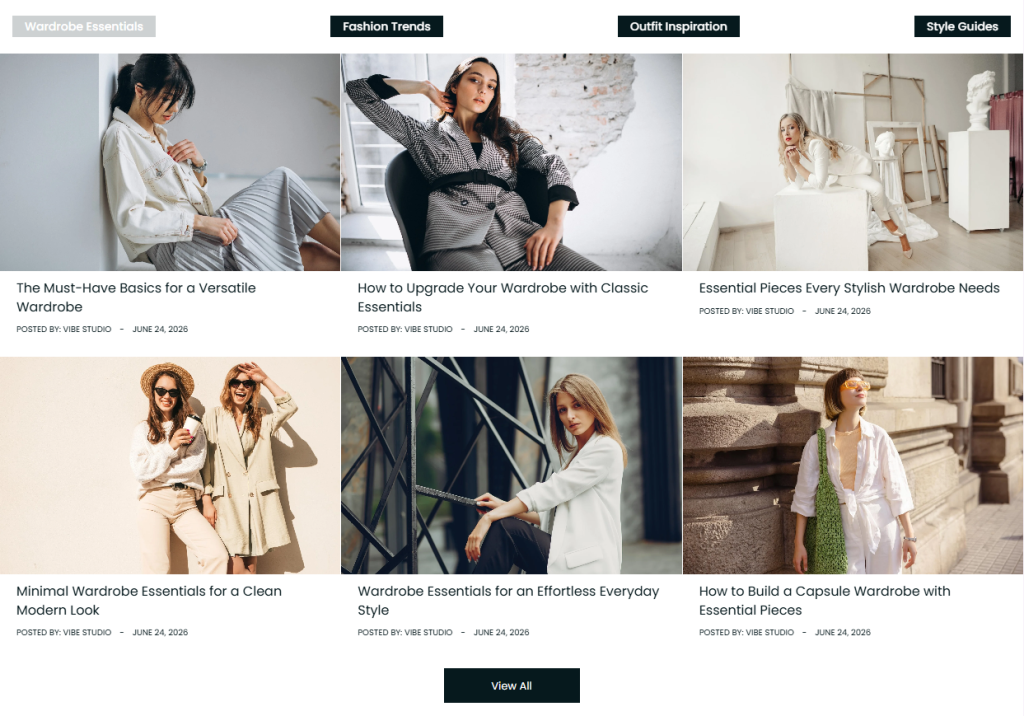
Blog Tabs is a flexible section designed to showcase articles from multiple blogs in a clean, organized tabbed layout. It allows you to group content by topic, category, or blog, making it easier for customers to explore relevant stories and discover more content.
Each tab can display a different collection of blog posts, helping you present a wider range of content while keeping the section compact and visually engaging. This is ideal for fashion brands, lifestyle stores, and content-driven storefronts.
Settings
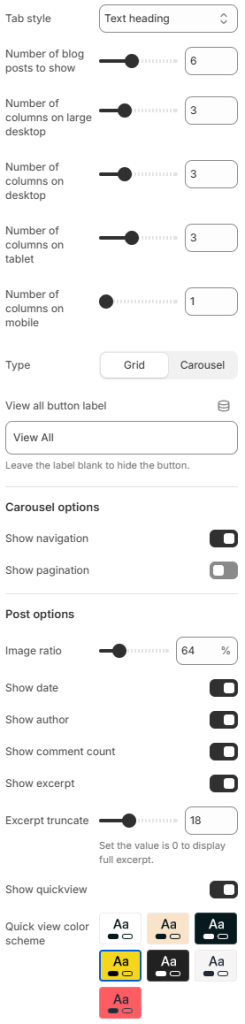
- Tab style: Select the visual style used to display the blog tabs.
- Number of blog posts to show: Set the maximum number of blog posts displayed within each tab.
- Number of columns on large desktop: Set the number of blog post columns displayed on large desktop screens.
- Number of columns on desktop: Set the number of blog post columns displayed on desktop screens.
- Number of columns on tablet: Set the number of blog post columns displayed on tablet devices.
- Number of columns on mobile: Set the number of blog post columns displayed on mobile devices.
- Type: Choose how blog posts are displayed, either in a grid or carousel layout.
- View all button label: Set the text displayed on the View All button. Leave blank to hide the button.
Carousel options
- Show navigation: Enable or disable navigation arrows for the blog post carousel.
- Show pagination: Enable or disable pagination indicators for the blog post carousel.
Post options
- Image ratio: Set the aspect ratio of blog post images.
- Show date: Enable or disable the publication date on blog posts.
- Show author: Enable or disable the author name on blog posts.
- Show comment count: Enable or disable the comment count on blog posts.
- Show excerpt: Enable or disable the post excerpt.
- Excerpt truncate: Set the maximum number of characters displayed in the post excerpt. Set to 0 to display the full excerpt.
- Show quickview: Enable or disable the quickview feature for blog posts.
- Quick view color scheme: Select the color scheme used for the quickview interface.
Block: Item
Create individual tabs within the Blog Tabs section by assigning a custom heading and selecting the blog to display. Each tab can represent a different topic, category, or content collection, making it easy to organize and showcase multiple blogs in one section.
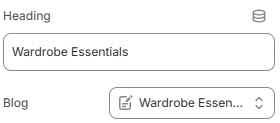
- Heading: Set the title displayed for the blog tab.
- Blog: Select the blog whose posts will be displayed within the tab.
With flexible layout, display, and post options, Blog Tabs makes it easy to create an engaging content area that adapts seamlessly across desktop, tablet, and mobile. Use tabs to organize your stories and give customers a simple, intuitive way to explore more of your content.